Come To The Stable, It’s Under The Bridge
I do an annual Christmas cover for the Inland Register, the diocesan newspaper of the Roman Catholic Diocese of Spokane, Washington. This year’s cover was a bit too involved for a full-blown Photoshop tutorial, but I thought it might be instructive to outline the basic construction sequence.
First of all, here’s the final, actual size roughly 7″ wide by 11.25″ high: 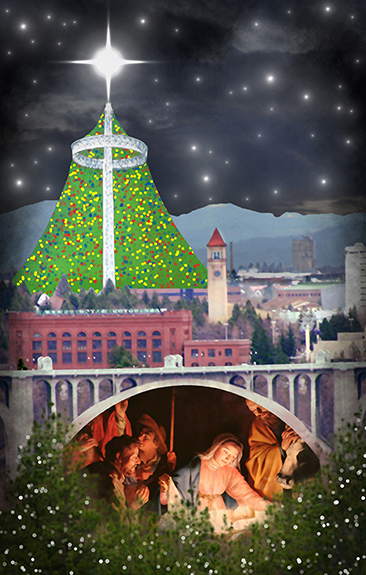
I got the idea from looking at this cityscape photo of Spokane. I remember thinking: it’s too bad that second bridge is in the foreground– but perhaps it could be removed in Photoshop.
Here’s my original rough sketch. You can see the “Lampshade” on the far left of the cityscape photo. It was constructed for the 1974 World’s Fair, and was actually the support structure for the tent which housed the U.S. pavilion. The people of Spokane decided to keep it as a monument to the Expo, and it still stands today in what is now Riverfront Park. 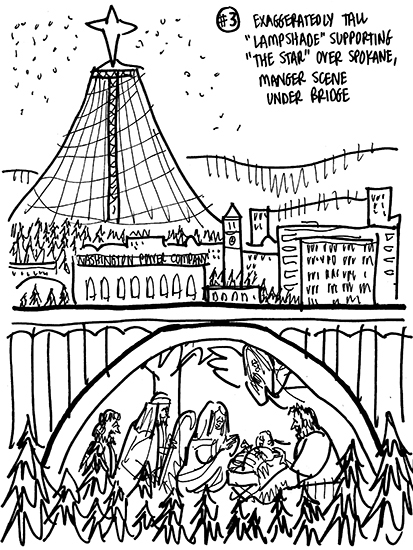
My first step was to extract the main bridge section, and carefully clone out the near bridge in the area circled below.
I pasted in the rebuilt bridge section, then duplicated it and flipped it horizontally to create a symmetrical left-hand side (red arrow below). You can still see segments of the original bridges (now on a lower Photoshop layer) on the outer edges of the image below.
I used the Pen tool to cut out and delete the area below the arch.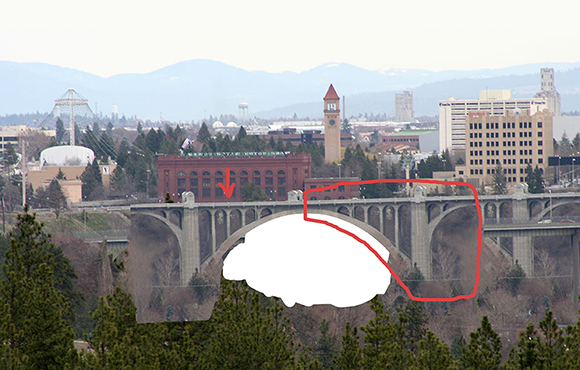
I extracted the foreground pine trees from the original photo, duplicated them to create a symmetrical grouping, and pasted them into the foreground of the image on a new layer (red arrow). I used the Clone tool to create a uniform “scrub brush” area around the base of the bridge (red arrow #2). I used the Rectangle tool to block out my cover area– always good to step back and see what you’re doing!!
I applied a series of color adjustments to brighten up the image. (The new pine trees and scrub brush layers are temporarily hidden in the image below.)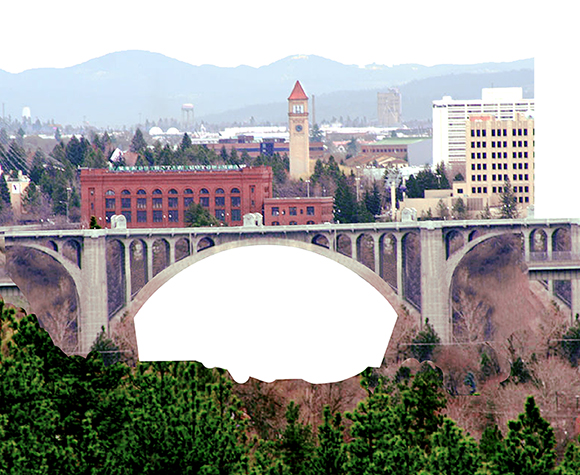
The Lampshade in the original photo was too murky and difficult to extract, but I found the top section framed against clear blue sky in this photo of Spokane’s Riverfront Park.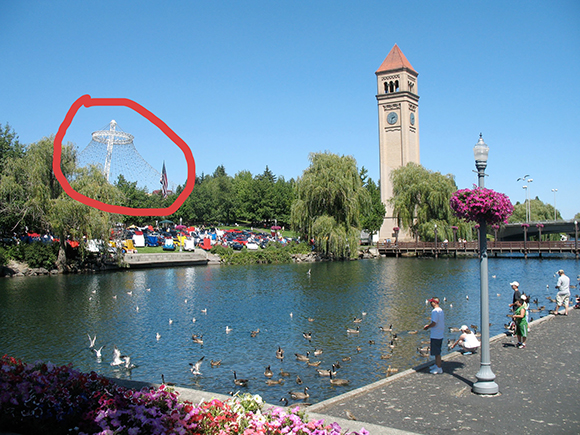
I extracted the Lampshade section (surrounding trees and all), and used the Clone tool to extend it. Then I used the Pen tool to give it a rough Christmas tree shape.
I pasted it into my main image, scaled it up, and used the Liquify filter to give it a nice uniform shape. I used a layer mask to create the illusion that the Lampshade is physically behind the buildings and trees.
Time to insert some night sky. I pasted in two separate photos– starry Milky Way, and moody clouds– and used blending mode = Multiply to combine them. The foreground pine trees and the scrub brush layers have been turned on, and are again visible in the image below. 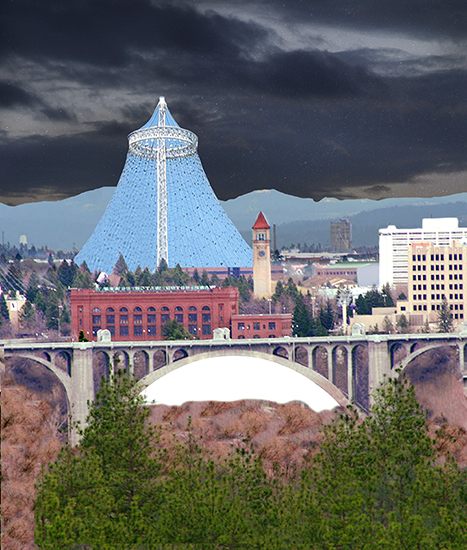
For the Nativity scene, I used Adoration of the Shepherds (1622) by Dutch painter Gerard van Honthorst. I found it on Wikimedia Commons. The image is in
the public domain worldwide.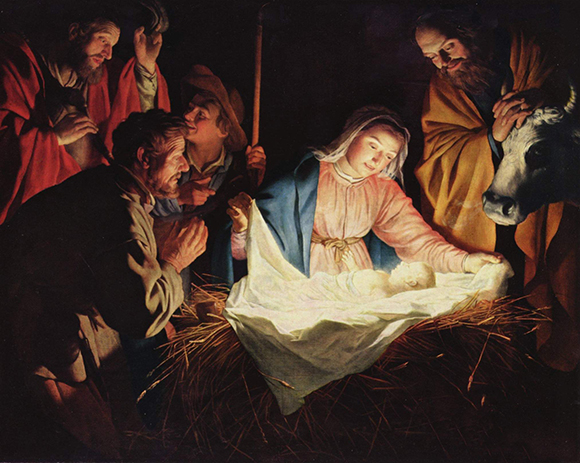
The painting image was too dark, so I applied some color adjustments to brighten it up and give it some warmth.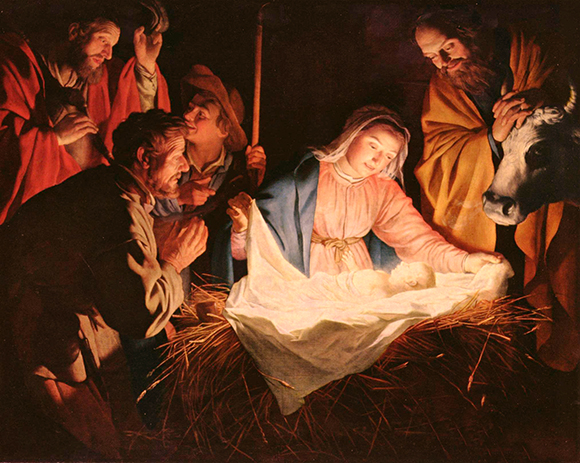
I pasted the Nativity scene under the bridge, and used layer masks to blend the images together (Nativity, bridge, scrub brush, foreground pine trees). I applied a Hue/Saturation adjustment to convert the Lampshade Christmas tree from blue to green. 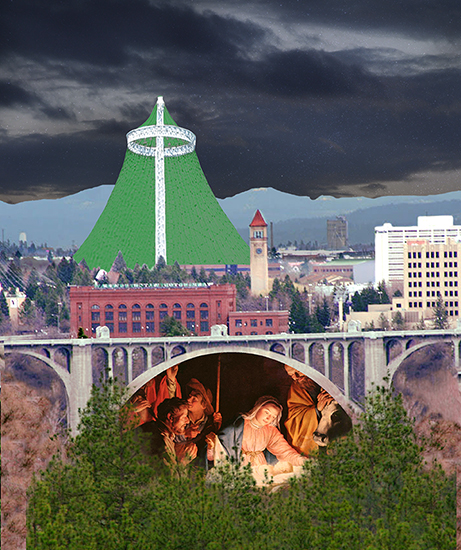
I turned on my border box (red rectangle below) to check overall placement. I used a large soft grunge-style brush to apply Black at low opacity around the entire image border to suggest “outer darkness.”
I used two different Photoshop “Star” brushes to add The Star on the Lampshade and the scattered smaller stars. I used a “Bokeh” brush to add white lights to the foreground trees.
I applied a Noise>Median filter which allowed me to blur both the cityscape and Nativity images while “retaining edges.” I used a layer mask to reduce the blurring of the Nativity faces so the expressions could be seen more clearly. 
Final step: I used a small hard brush with a wide scatter setting to apply red, blue, and yellow lights to the Lampshade tree. Here’s the final again. Scroll down for a larger detail image.
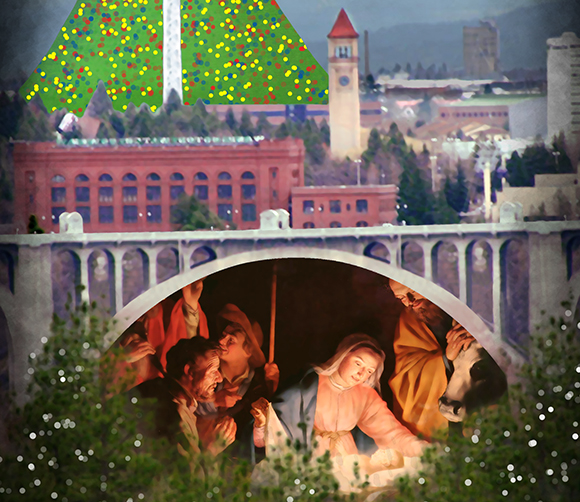
What do you think? Does it convey an effective Christmas message? Anything you’d have done differently? Hope you’ll leave a comment.
If you enjoyed this post, I invite you to subscribe. You can either leave a comment and click the box that says Notify me of new posts via email, or click on the Subscribe button below the Portfolio Thumbnails in the sidebar at the top right of this page.
Other Posts You Might Enjoy:
Ben Franklin Flies Kite, Discovers The Political Cartoon!!
He Don’t Need No Steenking Wings To Do Jumpin’ Jacks
Hey, Steroid User– You Look SWELL!